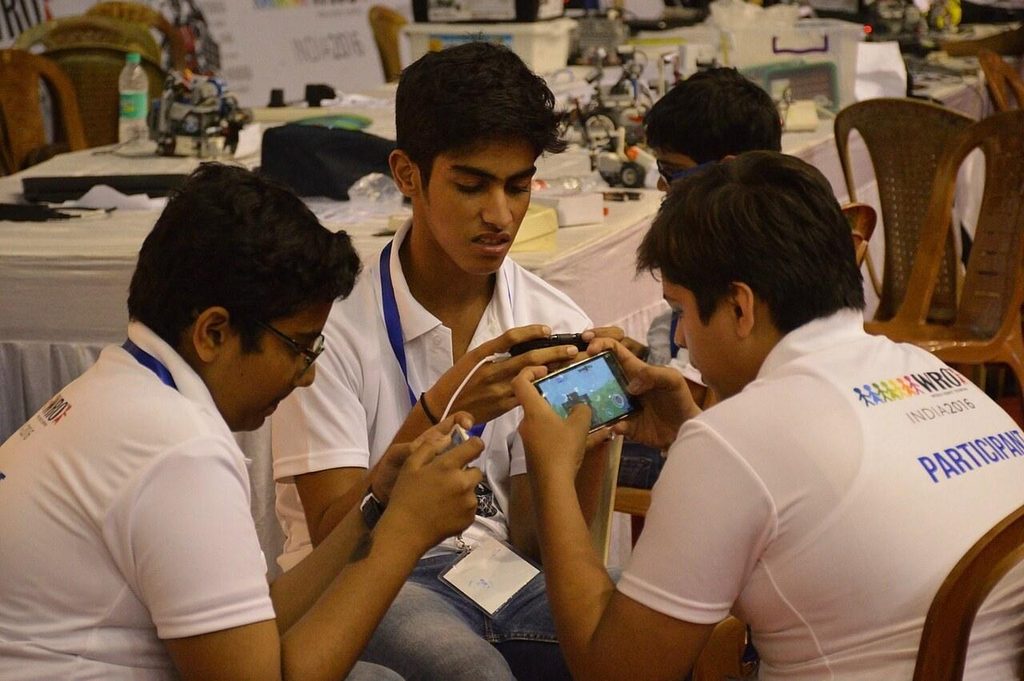
Smartphones have become an important part of everyday entertainment. Many users prefer mobile applications because they can explore different services directly from their Android devices. For people interested in Maanwin Game, understanding the app APK download process, installation requirements, and available features can make getting started easier.
Searching for maanwin App APK may bring up several websites, application pages, and download options. However, choosing the correct source is important because different platforms may use similar branding. An application name or logo alone does not confirm that a file is genuine.
This guide explains the important things beginners should know before downloading a Maanwin-branded Android application. It covers APK basics, possible features, source verification, installation, account access, troubleshooting, and mobile security.
1. What Is Maanwin App APK?
Maanwin App APK refers to an Android installation package associated with a Maanwin-branded mobile service.
APK stands for Android Package Kit. Android uses this format to distribute applications and install them on compatible smartphones.
Some websites using the maan win name describe online gaming services, mobile access, and account-related options. However, the availability and features of an application depend on the particular service and its publisher.
It is important to remember that multiple websites may use similar branding. Their ownership or relationship should not be assumed without reliable confirmation.
2. Why Do Users Search for Maanwin App APK?
People searching for a mobile application usually want a convenient way to access a service.
Some common reasons include:
- Exploring mobile gaming options
- Accessing an account through a smartphone
- Checking available application features
- Understanding registration procedures
- Using a mobile-friendly interface
- Learning about Android installation
These are general reasons users search for gaming applications. They do not confirm that every feature is available in every Maanwin-branded application.
3. Understanding the Main Features
The features of a Maanwin-branded service may vary according to its website, application version, and operating requirements.
Here are some types of features that users may encounter.
Mobile Interface
A mobile interface is designed to make navigation easier on smartphone screens.
Users may find menus, account sections, and category options arranged for touchscreen interaction.
Registration Options
Some Maanwin-branded websites describe account registration facilities.
Where available, a registration form may request basic information such as a mobile number and password. Additional verification requirements may also apply.
Login Access
An account login section may allow existing users to access their accounts.
The actual login method depends on the service.
Gaming Categories
Some Maanwin-branded platform descriptions mention activities such as:
- WinGo
- K3
- 5D
- TRX WinGo
- Slots
- Plinko
- Limbo
- Aviator
These are examples of categories mentioned by some branded websites, not a guaranteed feature list for every application.
Account Information
Depending on the service, users may find an account area containing profile information and other available settings.
Review the displayed options carefully before making changes.
4. Check the Application Before Downloading
Before downloading any APK, take time to examine its source.
Search results can contain different websites using similar Maanwin names. A download page may not necessarily belong to the publisher of another similarly named application.
Check these details:
- Website address
- Developer or publisher identity
- Application version
- Android compatibility
- Privacy policy
- Terms and conditions
- Installation instructions
- Available support information
Avoid pages that display excessive pop-ups, suspicious redirects, or misleading download buttons.
If you cannot verify the publisher, it is safer not to download the package.
5. Android Requirements to Consider
Your smartphone should meet the application’s requirements before installation.
Android Version
Check your device’s operating system through Settings. Compare it with the minimum Android version mentioned by the verified publisher.
Storage Capacity
Make sure enough storage space is available for the APK and the installed application.
Internet Connection
A stable internet connection helps prevent interrupted downloads and loading problems.
Device Protection
Keep your phone’s built-in security features enabled.
Do not switch off security protections to install a package from an unfamiliar source.
6. How to Download Maanwin App APK
If a verified publisher currently provides an Android APK, follow its published download instructions.
The general process is explained below.
Step 1: Open your browser
Launch a browser on your Android smartphone.
Step 2: Visit the verified publisher
Check the complete website address before continuing.
Step 3: Find the Android application section
Look for the application details and download information, if available.
Step 4: Review the package details
Check the version number, application name, and compatibility information.
Step 5: Select the intended download option
Avoid advertisements that imitate application download buttons.
Step 6: Wait for completion
Allow the file to finish downloading before opening it.
If an unexpected file downloads or the website redirects you to unrelated pages, stop the process.
7. How to Install the APK on Android
After downloading a verified installation package, you can review the Android installation prompt.
Follow these general steps:
- Open your phone’s File Manager.
- Navigate to the Downloads folder.
- Locate the APK file.
- Check its name and extension.
- Open the package.
- Review the displayed application information.
- Read any security warnings.
- Continue only if the source is trustworthy and the details are expected.
- Wait for installation to finish.
Installation screens may differ between Android versions and phone manufacturers.
If Android displays an unexplained warning, cancel the installation until you can verify the file.
8. What Is Install Unknown Apps Permission?
Android restricts applications installed from external sources as a security measure.
When opening an APK downloaded through a browser, your device may ask whether that browser or file manager is allowed to install applications.
On some devices, this option appears under:
Settings → Apps → Special App Access → Install Unknown Apps.
The exact menu location depends on your Android version and phone manufacturer.
Keep these precautions in mind:
- Only consider permission for a source you have verified.
- Do not allow unrelated applications to install packages.
- Keep built-in security protections active.
- Read Android’s security warnings.
- Review the permission after installation.
Allowing external installation does not prove that an APK is genuine.
9. First-Time Setup After Installation
After Android successfully installs the application, its icon may appear on your home screen or in the app drawer.
Open the application and wait for the initial interface to load.
Depending on the particular service, you may find:
- Welcome screen
- Login section
- Registration option
- Navigation menu
- Gaming categories
- Account information
- Settings or help section
The available options can change between applications and releases.
Before entering personal information, make sure you understand which service you have opened.
10. How to Register a New Account
If the verified service supports registration, look for a Sign Up or Register option.
Some Maanwin-branded registration pages describe fields such as:
- Mobile number
- Password
- Confirm password
- Verification information
- Invitation code, if applicable
These are examples of possible fields, not confirmed requirements for every application.
Before submitting the form, review the available terms and privacy information.
Choose a unique password and use contact information that belongs to you.
Never share your password or OTP with another person.
11. How to Access an Existing Account
Existing users may be able to access their accounts through the Login section.
A general login process may involve:
- Opening the application.
- Selecting Login.
- Entering registered credentials.
- Completing any required verification.
- Waiting for the account interface to load.
The exact process depends on the particular platform.
If you experience a login problem, check your credentials and internet connection. Use the recognised recovery option if available.
Do not enter account information on unfamiliar replacement websites.
12. How to Check for Application Updates
Application publishers may release newer versions to introduce changes or address technical issues.
Before installing an update, check:
- Current installed version
- New release information
- Publisher identity
- Android compatibility
- Update instructions
- Requested permissions
Do not rely only on version numbers displayed by third-party websites.
Avoid modified APK files advertised as unlocked, premium, or guaranteed-winning versions.
13. Common APK Download and Installation Problems
Some users may face difficulties while downloading or installing an Android package.
Here are common problems and possible explanations.
Download Does Not Finish
An unstable internet connection may interrupt the download.
Check your network and try again only through a verified source.
App Not Installed
This may happen because of insufficient storage, device incompatibility, a damaged package, or an installation conflict.
Review the device requirements and downloaded file.
APK File Cannot Be Opened
Check whether the downloaded file is a valid Android package.
Do not rename unfamiliar files to make them appear installable.
Application Opens but Does Not Load
Restart your phone and check the internet connection.
If the issue continues, review compatibility information and any available publisher instructions.
Login Details Are Not Accepted
Check the entered information and any verification requirements.
Use the recognised account recovery process if one is available.
14. Important Security Tips for Mobile Users
Protecting your smartphone and personal information should be a priority.
Follow these practices:
- Download only from a source you can verify.
- Avoid unofficial modified APK files.
- Keep your Android software updated.
- Use a strong, unique password.
- Never share OTPs.
- Review application permissions.
- Avoid suspicious advertisements.
- Do not install unknown recovery tools.
- Protect your device with a screen lock.
- Log out when using a shared smartphone.
If an application asks for sensitive information without a clear explanation, investigate before providing it.
15. Responsible Gaming and Financial Awareness
If the particular service offers real-money gaming, users should understand that financial losses are possible.
No application guarantees rewards, successful predictions, or regular income.
Before participating, consider the following:
- Check applicable local laws.
- Follow the platform’s age requirements.
- Set a fixed spending limit.
- Never borrow money for gaming.
- Avoid chasing previous losses.
- Do not use essential household funds.
- Stop if gaming creates financial pressure.
Gaming should never be treated as a guaranteed earning method.
Frequently Asked Questions
1. What is Maanwin App APK?
It is a term used for an Android installation package associated with a Maanwin-branded mobile service.
2. Is Maanwin App available for Android?
Some websites using the Maanwin name advertise Android application access. Users should verify the particular publisher and current availability before downloading.
3. Can beginners install Maanwin APK?
Beginners can follow the general Android APK installation process, provided the application is compatible and its source is trustworthy.
4. Where are downloaded APK files stored?
Most Android browsers save downloaded files in the Downloads folder, which can be opened through File Manager.
5. Can I use Maanwin through a browser?
If the particular service provides a legitimate mobile website, browser access may be available without installing an APK.
6. Why does Android display a warning during installation?
Android uses security restrictions to help protect users from potentially unsafe external applications. Always review the warning before proceeding.
7. Should I download an older APK version?
Only consider a version supplied by a verified publisher and supported by your device. Older versions may lack current compatibility or security updates.
8. Does downloading the application guarantee winnings?
No. Downloading an application does not guarantee rewards, winnings, or income. Real-money gaming involves financial risk.
Conclusion
Maanwin App APK download dmplay involves several important considerations for Android beginners. Understanding the APK format, checking the application publisher, reviewing device compatibility, and following safe installation practices can help users avoid unnecessary problems.
Before downloading, make sure the application source is trustworthy. After installation, explore the available interface carefully, protect your login details, and review any permissions requested by the application.
The most important thing is to prioritise security over convenience. Never install an unfamiliar package simply because it uses a familiar application name.
Disclaimer: This is an independent informational article and is not an official Maanwin publication. Different websites and applications may use similar Maanwin branding, and their ownership or relationship has not been independently established. Application availability, features, and installation requirements may change. Verify the publisher before downloading. Follow applicable local laws. Real-money gaming involves financial risk, and winnings or income are not guaranteed.