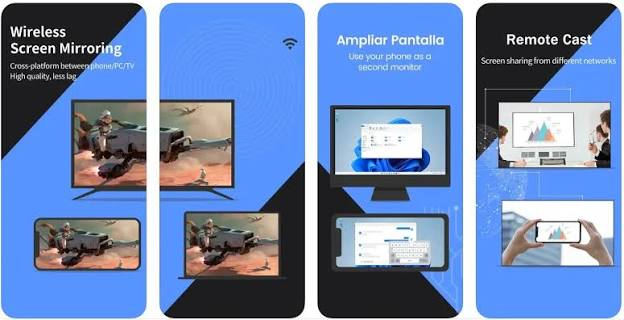

Mirroring your iPhone to a Windows computer used to involve specialized cables and frustrating software glitches. Today, wireless screen mirroring is much simpler. You can quickly view photos, present slideshows, or play mobile games on a larger desktop monitor without any technical headaches.
How We Chose These Apps
We evaluated dozens of programs based on video latency, ease of setup, and affordability. We prioritized software that offers a functional free version without aggressive paywalls. Our testing focused on connection stability over standard home Wi-Fi and how well each application handled high-resolution video feeds.
Top 10 Apps
1. iOS Mirror CC
Overview: For a straightforward setup, iOS Mirror.CC APP is a highly reliable option that simplifies the connection process. It bypasses the need for advanced network settings, allowing you to cast your display to a PC in just a few clicks.
Key features:
- Works efficiently over standard local Wi-Fi networks.
- Consistently maintains clear video quality during active casts.
- Features an intuitive layout that requires no technical background.
Best for: General users who want a quick, clean broadcasting experience without navigating complicated menus.
2. LetsView
Overview: LetsView remains a popular choice because it does not charge for its core functionality. It utilizes reliable protocols to mirror iPhone to PC directly, keeping the software lightweight so it runs quietly in the background without eating up system memory.
Key features:
- Completely free to use with no hidden subscription fees.
- Includes basic whiteboard tools for drawing on the display.
- Captures screenshots directly from the desktop client.
Best for: Students and educators who need a no-cost solution for classroom presentations and note-taking.
3. AirDroid Cast
Overview: AirDroid Cast offers both wireless and USB connection methods. While the free version restricts some of the advanced remote control features, it provides highly stable video transmission. It is widely used by professionals who cannot afford connection drops.
Key features:
- Supports browser-based casting without installing a desktop receiver.
- Allows multiple devices to cast to one screen simultaneously.
- Transmits local audio along with the video feed.
Best for: Office environments where multiple colleagues need to share their mobile screens on a single conference room monitor.
4. ApowerMirror
Overview: ApowerMirror is built specifically for media sharing and gaming. The free tier does place a watermark on the video feed, but the application compensates by offering excellent frame rates. It handles fast-moving graphics surprisingly well compared to standard remote desktop tools.
Key features:
- High frame rate optimization for mobile gaming.
- Built-in screen recording capabilities for capturing sessions.
- Virtual keyboard mapping for controlling mobile games on a PC.
Best for: Content creators and mobile gamers who want to record their gameplay or stream directly from a computer.
5. DeskIn
Overview: DeskIn originally launched as a remote desktop client but has developed strong mobile casting features. It manages bandwidth efficiently to keep the video smooth. If you are researching different software categories, you may want to browse our list of iPhone screen casting apps to see how dedicated standard cast tools compare to remote access environments like this.
Key features:
- Supports up to 4K resolution depending on network speed.
- Uses end-to-end encryption to keep data transfers secure.
- Connects up to three devices concurrently on the free plan.
Best for: Remote employees who handle sensitive information and need secure, high-definition casting during virtual meetings.
6. PigeonCast
Overview: PigeonCast is a newer utility that focuses entirely on localized streaming. It never routes your data through a cloud server, which improves privacy and significantly reduces lag. The interface is minimal, making it very quick to set up on a new machine.
Key features:
- Local network streaming ensures maximum data privacy.
- Connects instantly via a simple QR code scan.
- Low memory usage prevents older laptops from overheating.
Best for: Privacy-conscious individuals who want to cast personal photos and videos without relying on cloud-based servers.
7. AweSun Remote Desktop
Overview: AweSun is a heavy-duty application that surprisingly offers a generous free version. It utilizes an ultra-low latency protocol designed for enterprise hardware. Because it does not heavily restrict free users, you can deploy it freely in a business setting.
Key features:
- Exceptionally low response time (under one second).
- Capable of handling up to 144 FPS for high-speed video.
- Cross-platform support covers mobile, Windows, and macOS.
Best for: Power users who require enterprise-grade stability and zero lag for media-heavy workflows.
8. AirBeamTV
Overview: AirBeamTV takes a different approach by focusing on browser integration. Instead of forcing you to download a bulky desktop application, it allows you to cast your mobile display straight into a Chrome browser window on your PC.
Key features:
- No desktop software installation is required.
- Functions across any operating system that supports Chrome.
- Connects quickly using a nine-digit security PIN.
Best for: Freelancers or contractors who need to share their mobile display on borrowed computers where they cannot install new software.
9. EasyCast
Overview: Available directly through the Microsoft Store, EasyCast acts as a native receiver for mobile devices. It does not boast a massive feature list, but it integrates perfectly with the Windows ecosystem. The installation and setup process takes only seconds.
Key features:
- Native integration with Windows 10 and Windows 11.
- Operates effectively on older, lower-spec computers.
- Clean interface devoid of distracting advertisements.
Best for: Casual users who prefer downloading secure, lightweight applications directly from the official Microsoft Store.
10. AnyDesk
Overview: AnyDesk is globally recognized for remote access, and its casting functionality is highly optimized for poor network conditions. Its proprietary codec compresses video efficiently, allowing you to cast your display even when your Wi-Fi signal is weak or unstable.
Key features:
- Consumes very little bandwidth during active sessions.
- Extremely small application file size.
- Reliable performance on slow public internet connections.
Best for: Travelers and field workers who frequently connect to unpredictable public Wi-Fi networks.
How to Choose the Right App
Selecting the correct iOS mirroring software depends heavily on your daily routine. If you primarily want to show family photos or watch standard videos, a basic browser-based receiver is likely all you need. On the other hand, if you plan to stream fast-paced mobile games, you should prioritize software that supports high frame rates and low latency. Always check if a free version limits session lengths or applies heavy watermarks, as these restrictions can interfere with professional presentations.
Conclusion:
Casting your mobile display to a computer monitor is no longer a complicated technical chore. Whether you are leading an important office meeting, streaming a mobile game, or just browsing social media on a larger screen, there is a tool designed specifically for your needs. By testing a few of these free applications, you can easily find the perfect fit for your daily setup.